

How to add Substack episodes to your preferred podcast app
Instructions on adding NTT20's paid podcasts to your preferred feed.
You can listen to paid subscriber podcasts directly on your favourite podcast app.
Any issues - let us know and we’ll get back to you.
How to add Substack episodes to your preferred podcast app
There are two ways to add Substack podcasts to your favourite feeds - the first is incredibly simple, the second is tiny bit more fiddly.
Method #1
As shown in the video below:
Head to NTT20.COM in your browser or via the Substack app
Hit those three horizontal lines at the top right of the screen
Scroll down to “Manage Subscription”
Scroll down to “Private Podcast Feed”
Click on "Set up podcast" and a new tab will open in your browser
Select your podcast app, and your unique private RSS feed should automatically populate in the show URL box.
Ta-da — you’re all sorted.
Method #2 - Manual Setup
This text is taken from Substack’s own instruction guide which you can find online.
On your account Settings page:
1. Click on the publication you'd like to listen to on your podcast app.
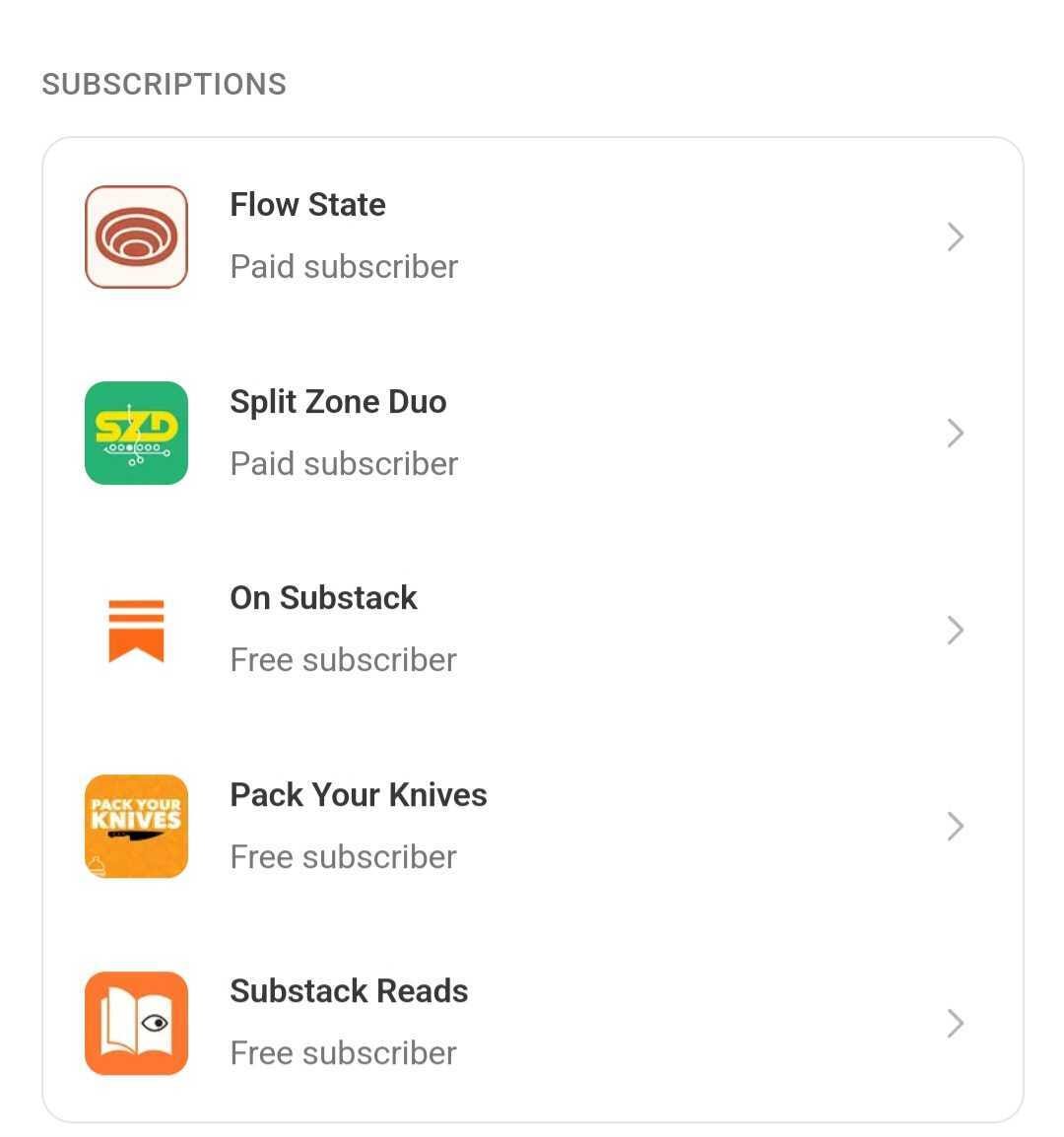
2. On your manage subscription page, scroll to the Private podcast feed section. Click "Set up podcast".
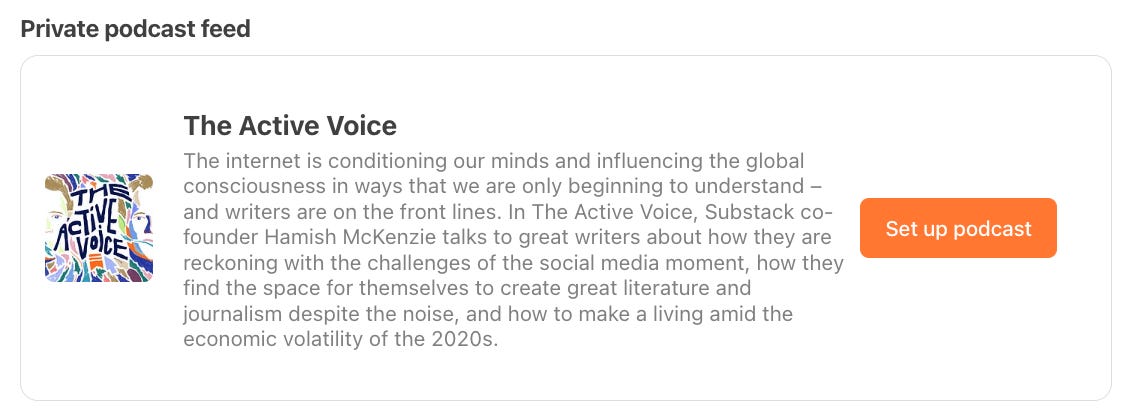
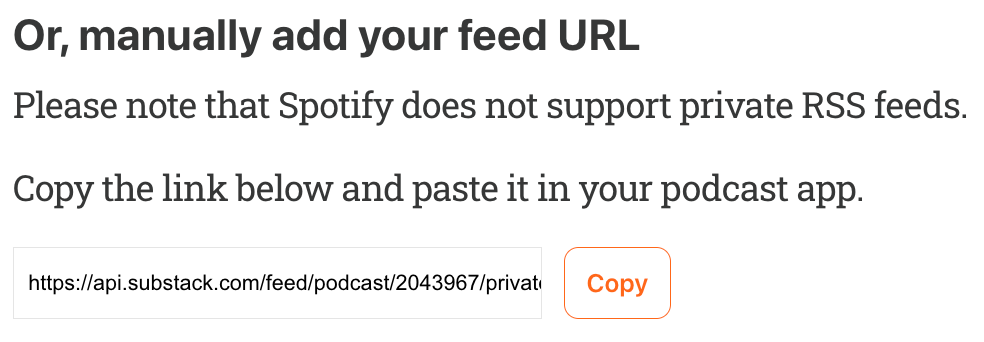
3. Copy the feed URL and paste it into your podcast app.
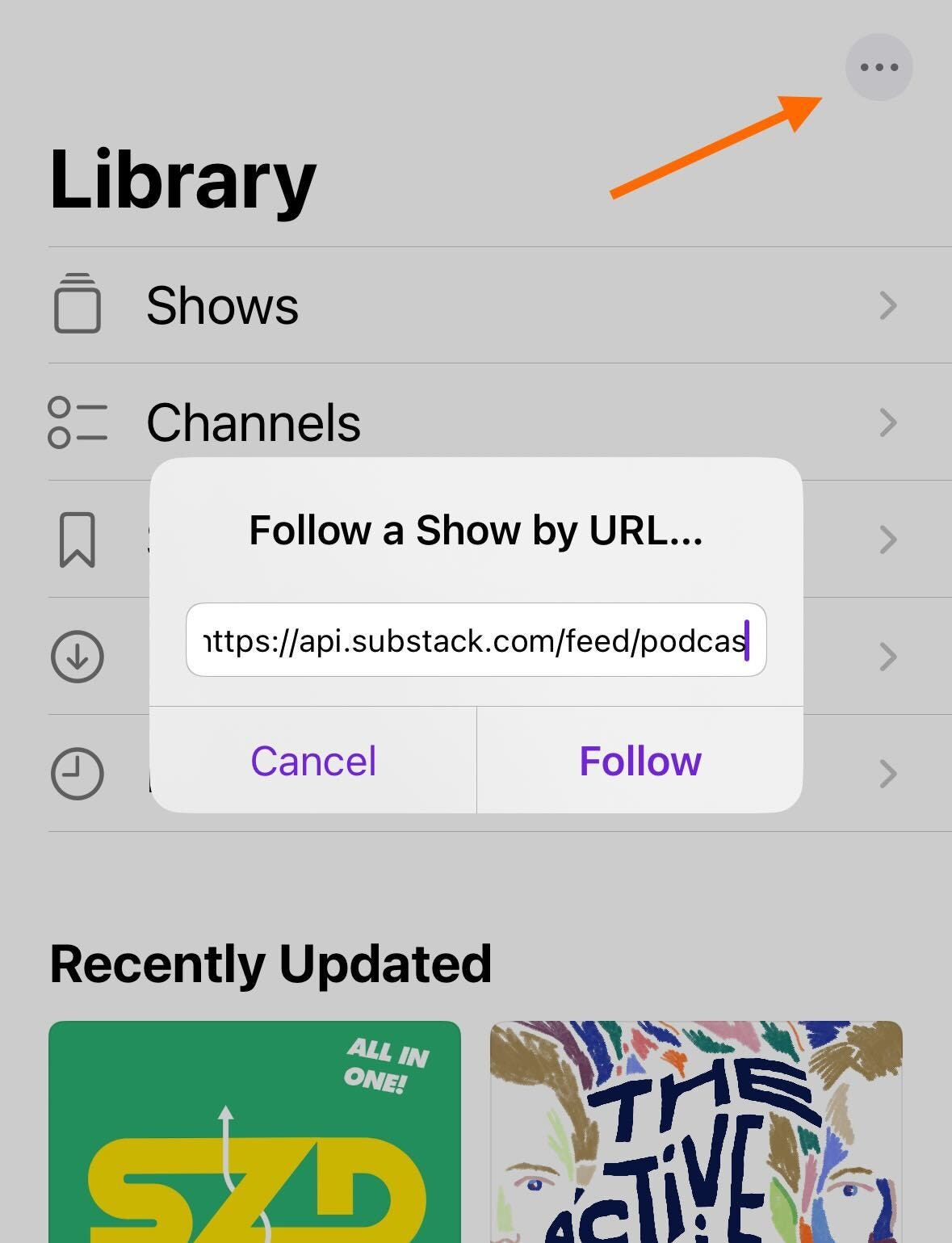
Apple Podcasts: Click on Library and the three dots in the top right corner. Select "Add a Show by URL" and enter the link you copied from Substack.
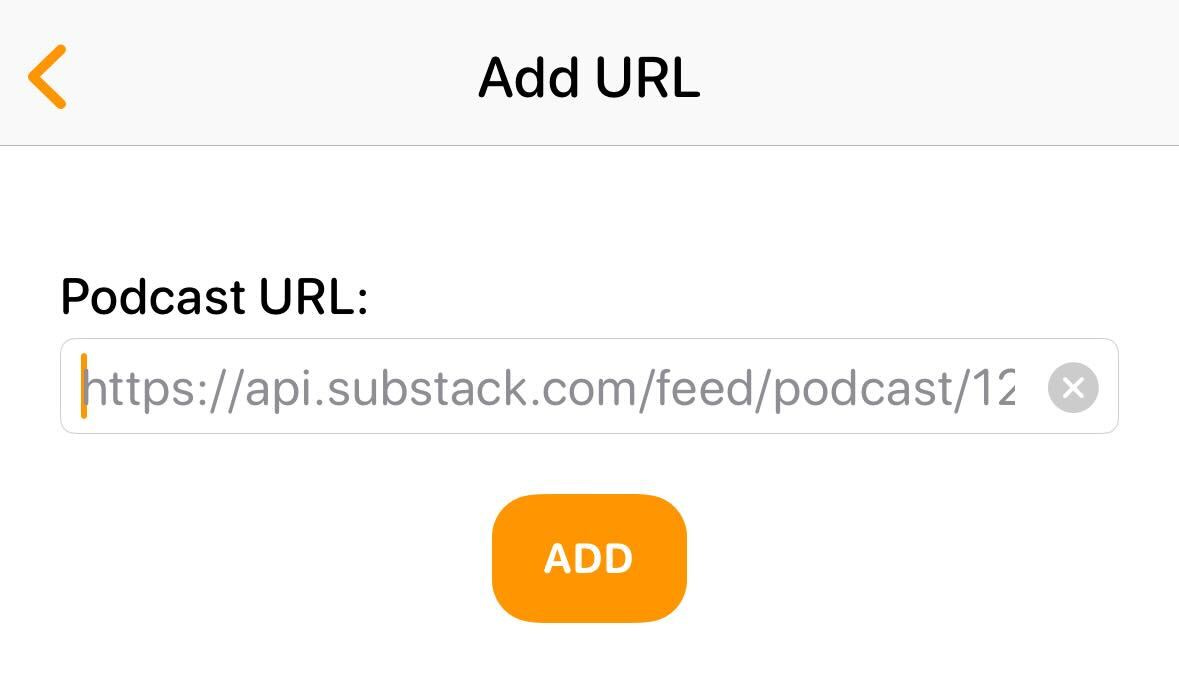
Overcast: Click on the plus sign and tap Add URL. Enter the link that you copied from Substack.
Pocket Casts: Enter the link you copied from Substack into the search bar. The show will appear. Tap on the plus sign to add the Substack podcast to this app.
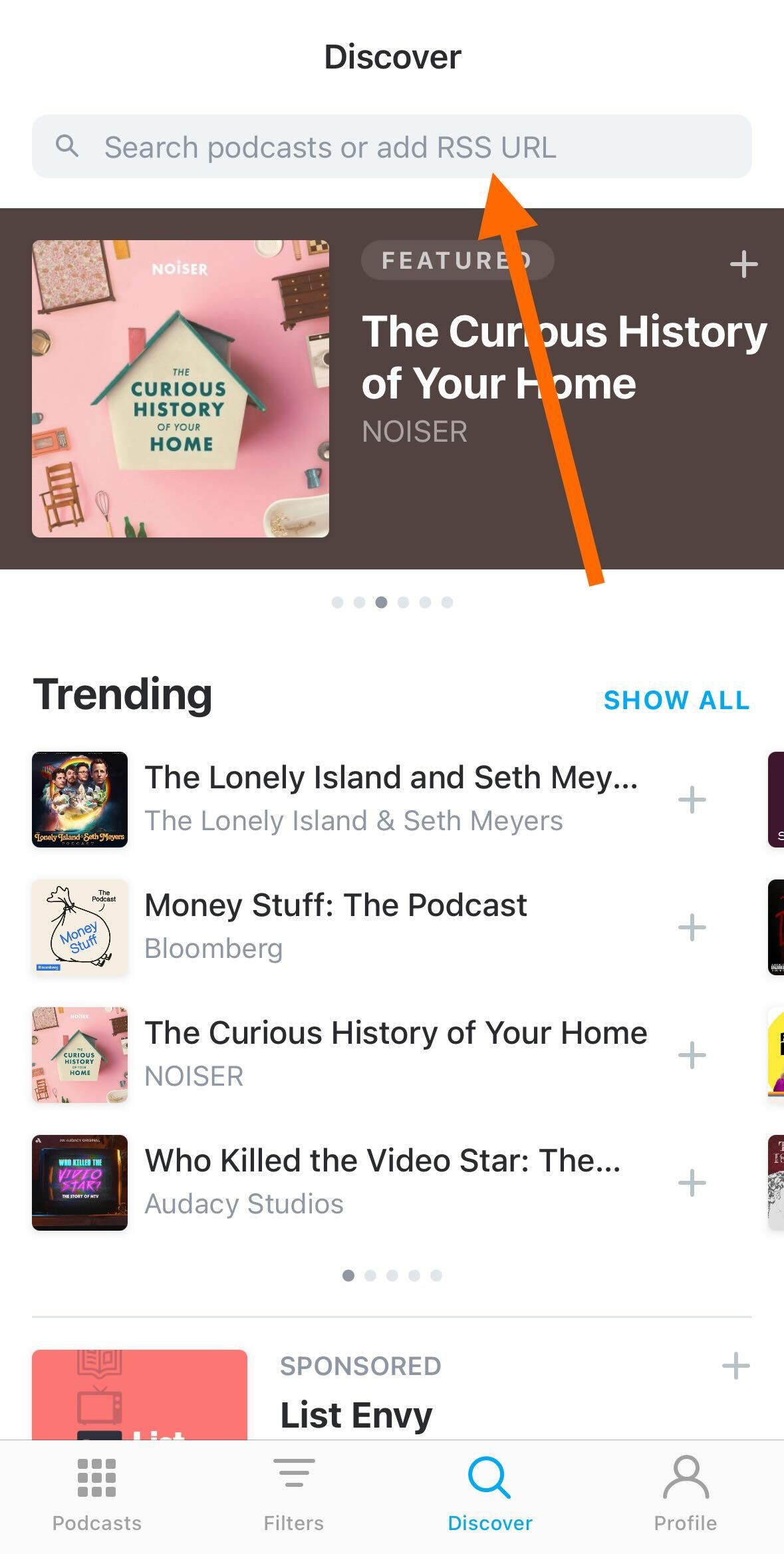
Tip: Typically, you can enter the URL into the podcast app show search bar or in an "Add URL" section.